
You can review inbox tasks Ellie has extracted from your email, switch between pending and completed items, and mark tasks complete. If you use Google Tasks or Microsoft To Do, you can also check sync status and pull in task updates.
Step by step
- Open Inbox tasks.
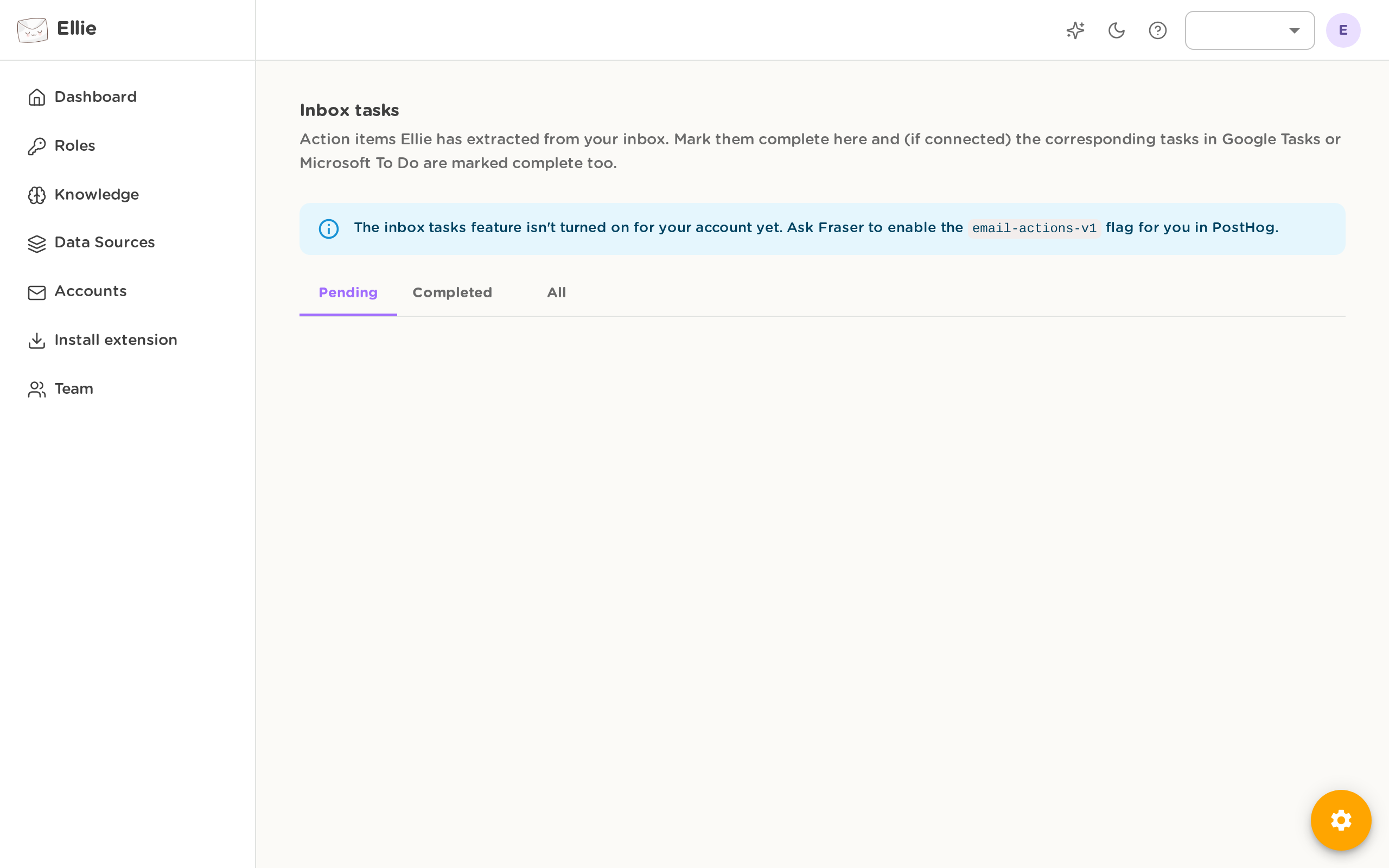
- Choose the list you want to work through:
- Pending for active tasks
- Completed for finished tasks
- All to see everything
- Review each task:
- Select Open email to open the original email in Gmail or Outlook.
- Check the due date if one is shown.
- If you use a connected task tool, look for the Google Tasks or Microsoft To Do badge to see whether that task has synced.
- Mark a task as done by selecting Mark complete.
- If you need to refresh the list, select Refresh.
- If you use Google Tasks and want to pull in recent changes right away, select Sync from Google Tasks.

When a task is marked complete in Ellie, Ellie also tries to mark the matching task complete in your connected task tool.
Good to know
- If you see No tasks here, Ellie has not added any inbox emails categorised as action required yet.
- The sync badges can also show when a connected provider failed to sync a task, so you can spot issues without opening the task elsewhere.